

-
Recently Browsing 0 members
- No registered users viewing this page.
-
Forum Statistics
250.4k
Total Topics2.7m
Total Posts -
Member Statistics
342,855
Total Members8,960
Most Online
-
Who's Online 12 Members, 0 Anonymous, 808 Guests (See full list)
-
Latest Articles
-
Posts
-
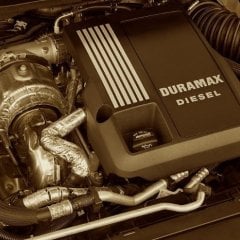 Dear diary, Not much to report, but the re-assembly started. New intake is smooshed down and torqued, ready for CPI leak testing again. 24hrs cure for the RTV will be completed this evening, so I'll fill it with fluids tomorrow and try to fire it off after getting all the little bits bolted back on. I hope this little truck thinks of me late at night and in the early morning after rising, too. (LOL) The greasy trench: The front crossmember is a gravitational force/black hole for dropped bolts, sockets, souls. It also retains leaked oil and coolant. It's awful when something actually falls inside of it. There's a thick greasy goo in there. I need to clean it out somehow because, fingers crossed, the engine shouldn't leak anymore. Douse it with brake cleaner? Get a pressure washer on it? It's freaking nasty.
 -
 Of course we have the privilege of seeing into the future and noting how the used transmission for whatever reasons did not do so well or so it would appear with the metal wear and its just a matter of when it will pile up. The unknown is the original transmission, how much longer would it have kept going and would it have left him stranded far off somewhere at a time when getting repairs may have been impossible to find. I rather doubt that these 10L1000 transmissions are going to be looked back on as an incredibly long life type of unit as there are other items besides the valve body that were never made as well as they could have been and why the aftermarket has come out with some better grade components. I guess there is one way of finding out though if the original trans is still on the shelf, install it with no modifications and keep on adding on the miles and see how far it will go !.
 -
-

-
 I’m a little confused by your comment. The number you reference is a bulletin number and not a program/update number. The tech bulletin basically just says the light may come on and stay on for 30 seconds then go away, and that is normal. Is there an update I may have gotten that causes this? And please know I appreciate the help, but im not understanding your question.
-
-
GM-Trucks.com Clubs
-

Black Truck Club
Open Club · 612 members
-

White Truck Club
Open Club · 380 members
-

Canadian Owners Club
Open Club · 282 members
-

Red Truck Club
Open Club · 157 members
-
diesel 3.0
Open Club · 281 members
-

Texas Owner's Group
Open Club · 371 members
-
NorthSky Blue Club
Open Club · 118 members
-

Midwest Owner's Group
Open Club · 213 members
-
2015 Custom Sport Club
Open Club · 5 members
-

GM Snow Plowing Club HD
Closed Club · 14 members
-
-
Popular Contributors
-
1
.thumb.JPG.2c573de60d3a3a4407c7d92298db46dd.JPG)
-
2

-
3
-
4
-
5

-
-

Recommended Posts
Archived
This topic is now archived and is closed to further replies.