
Actual Full Screen CarPlay on Refreshed Silverado/Sierras.

-
Similar Content
-
- 1 reply
- 1,721 views
-
- 8 replies
- 3,875 views
-
- 9 replies
- 33,910 views
-
- 1 reply
- 2,497 views
-
- 1 reply
- 11,352 views
-
-
Recently Browsing 0 members
- No registered users viewing this page.
-
Forum Statistics
250.5k
Total Topics2.7m
Total Posts -
Member Statistics
342,915
Total Members8,960
Most Online
-
Who's Online 10 Members, 1 Anonymous, 1,274 Guests (See full list)





-
Latest Articles
-
Posts
-

-
 A homeless man approached me as I was leaving a sandwich shop… He asked me if I had $10 to spare. I felt bad for him, and was just about to give him the money. But then I realized I was holding a $10 foot long I had just bought, so I held up both the cash and the sandwich and told him he could have whichever one he preferred. He stared at the sandwich. Then his eyes shot over to the $10 note. He looked at the sandwich again, then back at the cash. After a moment his eyes were darting back and forth between the two, and he threw up his hands in despair, let out a scream of anguish and then turned and ran away from me. At first I was totally confused, but then it dawned on me: Beggars can’t be choosers.
 -
.thumb.JPG.2c573de60d3a3a4407c7d92298db46dd.JPG)
-
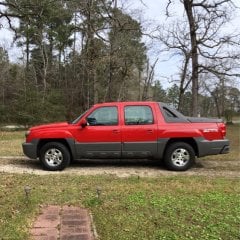 This is interesting. My quote tagged here is different from my original quote. After I’m driving them longer. That isn’t me. I don’t talk that way. I definitely wouldn’t express myself that way. Interesting.
 -
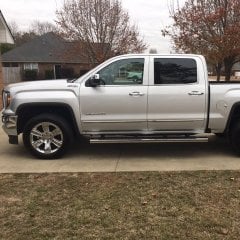 I have the same running boards on my truck and I do agree they are bulky. I also find myself stepping over them when getting in and out of the truck. Besides providing protection to the rocker panels, they aren't very useful. I will be replacing them soon with the Amp Powersteps.
-
-
GM-Trucks.com Clubs
-

Black Truck Club
Open Club · 613 members
-

White Truck Club
Open Club · 380 members
-

Canadian Owners Club
Open Club · 282 members
-

Red Truck Club
Open Club · 158 members
-
diesel 3.0
Open Club · 281 members
-

Texas Owner's Group
Open Club · 371 members
-
NorthSky Blue Club
Open Club · 118 members
-

Midwest Owner's Group
Open Club · 213 members
-
2015 Custom Sport Club
Open Club · 5 members
-
GM Snow Plowing Club HD
Closed Club · 14 members
-
-
Popular Contributors
-

Recommended Posts
Create an account or sign in to comment
You need to be a member in order to leave a comment
Create an account
Sign up for a new account in our community. It's easy!
Register a new accountSign in
Already have an account? Sign in here.
Sign In Now